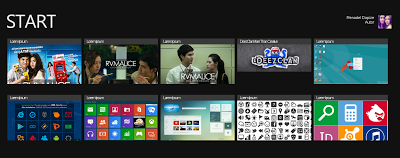
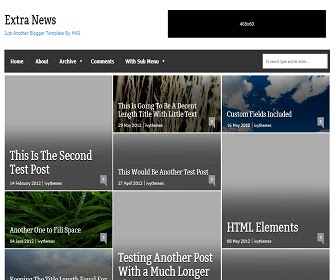
Showing posts with label Template. Show all posts

Rojadirecta Blogger Templates 2014

Blogger Templates 2014

Blogger Themes 2014

RojaDirecta Blogger Templates 2014
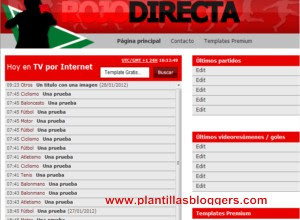


RojaDirecta Blogger Templates 2014,free Blogger Templates 2014,Templates Blogger 2014,Free Blogger Themes 2014,Blogger Themes 2014,Themes Blogger 2014,Themes Blogger 2014,Blogger Templates 2014


Template Name: Direct Red
Author: Ajmrdesign
How do I install my template: Follow this tutorial


Features of the template:

     Template adapted from Rojadirecta
     2 columns
     contains JavaScript, only the current time
     Red, gray and white colors.

DEMO
Descargar plantilla desde Mediafire | 4Shared | 2Shared | Ziddu


 RojaDirecta Blogger Templates 2014,free Blogger Templates 2014,Templates Blogger 2014,Free Blogger Themes 2014,Blogger Themes 2014,Themes Blogger 2014,Themes Blogger 2014,Blogger Templates 2014
Friday, December 27, 2013 | 3 comments | Read More

Sporty Magazine Blogger Templates 2014

Blogger Templates 2014

Blogger Themes 2014

Sporty Magazine Blogger Templates 2014


Sporty Magazine 2 blogger template 2014 


Template Name: Sporty Magazine 2
Author: BorneoTemplates
How do I install my template: Follow this tutorial

 
Features of the template:

     3 columns
     5 columns in the footer
     Social Bookmarking
     Images uploaded to blogger
     SEO Optimization
     Colors: black, white
     Type gallery
     Width fixed
    Ideal for sports blog, soccer.

DEMO
Download Template From : Mediafire | 4Shared | 2Shared | Ziddu

Sporty Magazine Blogger Templates 2014,free Blogger Templates 2014,Templates Blogger 2014,Free Blogger Themes 2014,Blogger Themes 2014,Themes Blogger 2014,Themes Blogger 2014,Blogger Templates 2014
Friday, December 27, 2013 | 0 comments | Read More

Johny Ember Blogger Templates 2014

Blogger Templates 2014

Blogger Themes 2014

Johny Ember Blogger Templates 2014


Free Blogger Themes 2014


Template Name: Johny Ember
Author: MasKolis
How do I install my template: Follow this tutorial

Template description:

Johny Ember is a free template for ideal sites or blogs blogger movies or videos, it shows an image that leads the article where you can play a video.

Features of the template:

     Slider top
     lets show tickets as list (normal blog) or as a gallery.
     2 columns
     allows to display specific categories at the start of the page, in addition to the most recent
     3 column footer
     In the body of inputs 4 columns of images (items) are shown
     includes social icons
     Customizable menu.
     Gray, white and blue.

DEMO
Download template from :  Mediafire | 4Shared | 2Shared | Ziddu


Johny Ember Blogger Templates 2014,free Blogger Templates 2014,Templates Blogger 2014,Free Blogger Themes 2014,Blogger Themes 2014,Themes Blogger 2014,Themes Blogger 2014,Blogger Templates 2014
Friday, December 27, 2013 | 0 comments | Read More

Simple X Photogallery Blogger Template 2014

Blogger Templates 2014

Wordpress Themes 2014

Simple X Photogallery Blogger Template 2014


Wordpress Themes 2014


Template Name: Simple X Photogallery Blogger Template

Template Author: Dinh Quang Huy

Round Instructions: How to install a Blogger template

Template Instructions:

. 1 - Find the following code in Design / Edit HTMLy replaces the URL (in red) for your blog.

 
<div id='header'>
<div class='headerleft'>
<div class='headertext'>
<h1>
<a href='http://nhamngahanh-gallery.blogspot.com/'>Simplex Photo Gallery</a>
</h1>
<p>Another gallery template for blogspot</p>
</div>
</div>
2 -. Entries To work properly, you must configure it as follows.

Free Wordpress Themes 2014


. 3 - Now see the post, should contain only one image (no text, so it is a template for photographers), and must have the following format:

<- Portrait pink ->
<img src="URL OF IMAGEN" title="Rosa" alt="Rosa"/>

- The first line is a comment on the image and serves and search from the blog, as there is no text, the search will not find anything if you do not add this comment line.
- The second line is the image, first you put the full URL, then a title (title) and finally a value "alt" (shown when we pass the mouse over the image). The value "alt" is not as necessary, but if the "title". Value


Simple X Photogallery Blogger Template 2014,free Blogger Templates 2014,Templates Blogger 2014,Free Blogger Themes 2014,Blogger Themes 2014,Themes Blogger 2014,Themes Blogger 2014,Blogger Templates 2014
Saturday, December 21, 2013 | 0 comments | Read More

Free Blogger Templates 2014 - Windows 8 Blogger Template 2014

Free Blogger Templates 2014

Free Blogger Templates 2014 - Windows 8 Blogger Template 2014

Free Blogger Themes 2014 - Windows 8 Blogger Template 2014


Windows 8 UI blogger template 2014 es una free blogger template with 1 column, style gallery, fluid width, ideal for photographs photoblogs


Free Blogger Themes 2014 - Windows 8 Blogger Template 2014


DEMO                     DOWNLOAD


 How To Upload Blogger Templates


More Blogger Templates

Windows 8 Blogger Template 2014,free Blogger Templates 2014,Templates Blogger 2014,Free Blogger Themes 2014,Blogger Themes 2014,Themes Blogger 2014,Themes Blogger 2014,Blogger Templates 2014


Saturday, November 30, 2013 | 0 comments | Read More

Free Blogger Templates 2014 - X8 Blogger Templates 2014

Free Blogger Templates 2014

Free Blogger Templates 2014 - X8 Blogger Templates 2014

Free Blogger Themes 2014 - X8 Blogger Templates 2014


X8 Blogger Templates 2014 - White is a light color blogger template, there is also the dark and light, two columns, a right sidebar, Design Adapted from Wordpress, Excellent design for blogs about art versions.


Free Blogger Themes 2014 - X8 Blogger Templates 2014


DEMO                     DOWNLOAD


 How To Upload Blogger Templates


More Blogger Templates
`


X8 Blogger Templates 2014,free Blogger Templates 2014,Templates Blogger 2014,Free Blogger Themes 2014,Blogger Themes 2014,Themes Blogger 2014,Themes Blogger 2014,Blogger Templates 2014


Saturday, November 30, 2013 | 0 comments | Read More

Free Blogger Templates 2014 - Extra News Blogger Template 2014

 Free Blogger Templates 2014

Free Blogger Templates 2014 - Extra News Blogger Template 2014

Free Blogger Themes 2014 - Extra News Blogger Template 2014


ExtraNews Blogger Template 2014 is a free blogger template two columns three footer, Adapted from WordPress, Black Background, News, Premium, Right Sidebar, Top Navigation Bar, ideal for magazines like blogs, news portal design.


 Free Blogger Themes 2014 - Extra News Blogger Template 2014


 DEMO                     DOWNLOAD

 How To Upload Blogger Templates

More Blogger Templates


Autor IVYthemes / www.ivythemes.com
Diseñadores IVYthemes / www.ivythemes.com | MKR Site / http://www.ivythemes.com/


Extra News Blogger Template 2014,free Blogger Templates 2014,Templates Blogger 2014,Free Blogger Themes 2014,Blogger Themes 2014,Themes Blogger 2014,Themes Blogger 2014,Blogger Templates 2014


Wednesday, November 27, 2013 | 1 comments | Read More

Free Blogger Templates 2014 - Johny Blackstore Blogger Template 2014

 Free Blogger Templates 2014

Free Blogger Templates 2014 - Johny Blackstore Blogger Template 2014

Free Blogger Themes 2014 - Johny Blackstore Blogger Template 2014


Johny Blackstore Blogger Template 2014 is a special designed blogger template for an online store. four columns, left sidebar, three footer, shopping cart, automatic sliding, pagination for blogger ready, dropdown menu, image zoom, clean design template, and more.


 Free Blogger Themes 2014 - Johny Blackstore Blogger Template 2014


 DEMO                     DOWNLOAD

 How To Upload Blogger Templates

More Blogger Templates


posting Articles

In a new article, note the structure of the code below:

<div class="product_image">
<a class="cloud-zoom" href="url-image.jpg" rel="softFocus: true, position:'inside', smoothMove:2"><img border="0" class="item_thumb" src="url-image.jpg" /></a>
<span class="item_price">$00.00</span></div>
<div class="product_describe">
Description your product.............
</div>
Description:
Color red: enter the url of your product images on both the red color code above. Try to picture that you upload the same length and width, for example, 300 x 300 px
Yellow color: the price of the product
The blue color: the description of the product

The above code is the code that you need to start in making the latest posts, and to make it easier so that you do not repeatedly copy and paste the code while creating a new article, enter the code in the post-column template. Go to settings, select the posts and comments >> post template. Click Add, then enter the above code in the empty box as shown below, the last save settings.


 Free Blogger Templates 2014

Shopping Cart


Shopping Cart feature is used here to facilitate the online store manager in the transaction via Paypal. But since Paypal has not received payment Euro, so the setting for the currency is in dollars. To replace a Paypal account contained in this demo blog with your Paypal account, find the code below:
<script type='text/javascript'>
simpleCart.email = &quot;johnytemplate@gmail.com&quot;;
simpleCart.checkoutTo = PayPal;
simpleCart.currency = USD;
simpleCart.taxRate  = 0.02;
simpleCart.shippingFlatRate = 3.25;
simpleCart.shippingQuantityRate = 1.00;
simpleCart.cartHeaders = [&quot;thumb_image&quot; , &quot;Quantity_input&quot; ,   &quot;Total&quot;, &quot;remove&quot; ];
</script>
Replace red above email with your email (email already registered on Paypal)

Supporting features

     Slider which I attach here works automatically, showing you the latest articles by the number 8 post. If you want to display per category or label, find this code in the Edit HTML (do not forget to check expand widget templates):

  1. <script>
    document.write(&quot; &lt;script src=\&quot;/feeds/posts/default?max-results=&quot;+numposts+&quot;&amp;orderby=published&amp;alt=json-in-script&amp;callback=showrecentposts\&quot;&gt;&lt;\/script&gt;&quot;);
    </script>
    Replace with the following code:
    <script>
    document.write(&quot; &lt;script src=\&quot;/feeds/posts/default/-/your label?max-results=&quot;+numposts+&quot;&amp;orderby=published&amp;alt=json-in-script&amp;callback=showrecentposts\&quot;&gt;&lt;\/script&gt;&quot;);
    </script>
    Replace the blue color code label you want to appear on the slider.
    To change your email subscription available under navigation, search code below in the Edit HTML (do not forget to check the box expand widget templates):

  2. <form action='http://feedburner.google.com/fb/a/mailverify' id='subscribe' method='post' onsubmit='window.open(&apos;http://feedburner.google.com/fb/a/mailverify?uri=blogspot/htbgh&apos;, &apos;popupwindow&apos;, &apos;scrollbars=yes,width=550,height=520&apos;);return true' target='popupwindow'><input id='subbox' name='email' onblur='if (this.value == &apos;&apos;) {this.value = &apos;Enter your email address...&apos;;}' onfocus='if (this.value == &apos;Enter your email address...&apos;) {this.value = &apos;&apos;;}' type='text' value='Enter your email address...'/><input name='uri' type='hidden' value='blogspot/htbgh'/><input name='loc' type='hidden' value='en_US'/><input id='subbutton' type='submit' value='Enter'/></form>
     

Description:
The blue color: replace with your feed address.
Widget Contact Online
Enter the following code in the box HTML / Javascript

  1. <table border='0' cellpadding='0' cellspacing='0' height='1' width='100%'>
    <tbody>
    <tr>
    <td height='1'>Customer Service A</td>

    <td align='right' height='1'><a href='ymsgr:sendIM?youryahoousername1'><img border='0' height='16' src='http://opi.yahoo.com/online?u=youryahoousername1&m=g&t=1' style='padding-top:3px' width='64'/></a></td>
    </tr>
    </tbody>
    </table>

    <div style='display: block;'>
    <table border='0' cellpadding='0' cellspacing='0' height='1' width='100%'>
    <tbody>
    <tr>
    <td align='left' height='1'>Custumer Service B</td>
    <td align='right' height='1'><a href='ymsgr:sendIM?youryahoousername2'><img border='0' height='16' src='http://opi.yahoo.com/online?u=youryahoousername2&m=g&t=1' style='padding-top:3px' width='64'/></a></td>
    </tr>
    </tbody>
    </table></div>

    <p align="center"><a href="http://mas-template.blogspot.com/"><img src="https://blogger.googleusercontent.com/img/b/R29vZ2xl/AVvXsEiuM90aOuflAq_0nbQQUxXi6iRSwU1VRwb_c2bGlqPVuaMkZgZ8XAa1zgdkXPrxFLWh1bfQk68cou9kN8PXuBsApzRUq5_lQPbo2kLjdigO2DAZUieQeX-FXiwT6TfBB7pzgMhoCP8WO38/s1600/donate.png" alt="twitter maskolis" /></a></p>
     
Replace youryahoousername1 and youryahoousername2 with your yahoo ID.
These templates use the comments box model has been modified, to enable the functionality you need to reply to this code in the Edit HTML, once again do not forget to check the box expand widget templates:


  1. <a expr:href='&quot;https://www.blogger.com/comment.g?blogID=2440873145683465163&amp;postID=&quot; + data:post.id + &quot;&amp;isPopup=true&amp;postBody=%40%3C%61%20%68%72%65%66%3D%22%23&quot; + data:comment.anchorName + &quot;%22%3E&quot; + data:comment.author + &quot;%3C%2F%61%3E#form&quot;' onclick='javascript:window.open(this.href, &quot;bloggerPopup&quot;, &quot;toolbar=0,location=0,statusbar=1,menubar=0,scrollbars=yes,width=600,height=500&quot;); return false;'>Reply</a>
    The color red in the code above is a demo blog ID, you must replace it with the ID of your blog which is located in the browser if you get into the dashboard, like the picture below:

  2. Post thumbnail popular widgets, settings as in the image below:
    popular Free Blogger Templates 2014
    Noteworthy is only a thumbnail check, leave the box blank snippet does not need to be checked. Title and the number of posts you want to display up to you. For more details, please read the tutorial here.

    Another feature that I think is easy, such as installing Yahoo Messenger and others. This template also comes with the zooming effect on the image if you point the cursor on the image, the image will be automatically enlarged in accordance with the location of the cursor. Maybe it's just that I need to explain about this template, as always if there are not clear please leave your comments in the comment box at the bottom. Good luck and hopefully useful.
Showcase
If you would like to see a blog that has been put on this template. can be found here:

Toko Madu Mulia Alam Nusantara
Johny Online Store

Strongly recommended:

     Read this tutorial to complete the installation template.
     I suggest to upload pictures of products with the same length and width, for example, 300 x 300 px.
     So that the final result in the maximum use of this template and layout regular post, the post title should not be too long, because it will move the image down.
     To speed up loading, save the existing javascript on this template in Google Code your storage area. For those who have not been able to save at Google Code can be read here the tutorial.
Update
Untuk merubah simbol currency dari $ (dollar) menjadi Rp (rupiah) pada shopping cart :

  1. Dear URL script ini Edit HTML:
    http://jagad.googlecode.com/files/WojosimpleCart-IDR.js
    Having met with the URL change the script:
    https://masolis-javascript.googlecode.com/svn/trunk/blackstorecart-rupiah.js
The next step, still in Edit HTML replace USD in this code:

         simpleCart.currency = USD;

     be

         simpleCart.currency = S;

Last save templates, and you will change the currency into dollars. But keep in mind here, it's just a replacement of the currency only, not to do a checkout or payment directly through Paypal. Due to Paypal not accept Euro as a means of payment.


Johny Blackstore Blogger Template 2014,Free Blogger Templates 2014,Templates Blogger 2014,Free Blogger Themes 2014,Blogger Themes 2014,Themes Blogger 2014,Themes Blogger 2014,
Blogger Templates 2014
Wednesday, November 27, 2013 | 1 comments | Read More

Free Blogger Templates 2014 - MBT Church Blogger Template 2014


Free Blogger Templates 2014

Free Blogger Templates 2014 - MBT Church Blogger Template 2014

Free Blogger Themes 2014 - MBT Church Blogger Theme 2014


MBT Church Theme is a two column blogger template three footer, neutral background color, right sidebar, good design blogs for tips, tricks, tutorials blogging, including some features:

Blogger navigation bar invisible by default
Widget RSS / Email Subscription Form Widget
Built-in Pop up image effect
Beautiful Social Bookmarking Icons
Related Post Widget
Author's comments appear in a different style
3D Style Sidebar Top


 Free Blogger Themes 2014 - MBT Church Blogger Theme 2014


Features related to Customization
Some Important features and built-in widgets are highlighted in the image below,

  1. Blogger Navigation Bar invisible by Default (1)
  2. Coloured title (2)
  3. Curtain Style Header (3)
  4. RSS Feed Widget/Subscription Email Form Widget, with a customized email form and button (4) (Not Built-in)
  5. Built-in Pop up image effect (5)
  6. Built-in Fading image effect (6)
  7. Beautiful Social Bookmarking Icons (7)
  8. Related Post Widget (8)
  9. Adsense adds appear in sub-pages only for fast Page-load-time (9)
  10. Built-in Comment counter! (10)
  11. Author comments appear in different style (11)
  12. Different Sidebar Web Bullet (12)
  13. Page Navigation! (13)
  14. Highly stylized Three Column Footer Widget – The most important edition to the template (14)
  15. Blinking Back To Top Link (15)
  16. 3D style Sidebar Top Area (16)
  17. 3D style Sub Navigation Bar (16)
  18. Built-in Read More  or Continue Reading Link visible on homepage

 MBT-church-theme-Display

Layout Screen Shot
Here is a screenshot of the layout, where you can see extra “add a gadget” widgets above header, post-body and footer.
 MBT-church-theme-layout

Optimization Guide
MBT Church Theme is a well scripted and optimized BlogSpot template. I have done whatever I could to let search engines better crawl your blog content and let your blog rank higher in search results.
By default I have added some very important meta tags under the <head> tag. Meta tags help search engines to better know what your blog is all about. These meta tags need some edition. To edit them follow the steps below,
Go To Layout > Edit HTML
And search for <head> (Press Ctrl + F to use a search box for finding <head>)
You will find 4 important meta tags under the <head> tag as shown in the image below,
 Meta-Tags-For-MBT-Church-Th
You just need to edit the Meta tags as guided in the bolded text below.
Update:- I have observed that for some unknown reasons the meta tags get automatically deleted. If you see no metas in your buster theme than simple copy paste the code below just under <b:include data='blog' name='all-head-content'/>


<link href='mailto:Your Email Address Goes Here' rev='made'/>
<b:if cond='data:blog.url == data:blog.homepageUrl'>
<meta content='Add your blog description here. Maximum Characters (including spaces) should be 120' name='Description'/></b:if>
<meta content='Add your keywords here, Maximum Characters (including spaces) should be 200' name='keywords'/>
<meta content='Write your name here' name='Author'/>

A meta Description can be a simple sentence that defines the overall topic of your blog.
A meta keywords tag is supposed to be a brief and concise list of the most important terms on your page
I am giving a dummy example below for my blog to help you get an idea


<link href='mailto:mustafa.xyz@hotmail.com' rev='made'/>
<b:if cond='data:blog.url == data:blog.homepageUrl'>
<meta content=’Get dozens of tricks related to blogger hosted blogs with free download of highly professional blogger templates' name='Description'/></b:if>
<meta content='Blogger widgets,templates, download, free, seo tips, blogspot tricks' name='keywords'/>
<meta content='Mohammad Mustafa Ahmedzai' name='Author'/>


Avoid duplicate meta keywords/ repetitive keywords. For instance, for meta keywords I have written 'Blogger widgets,templates, download, free, seo tips, blogspot tricks
and not  Blogger widgets, Blogger templates, download Blogger templates, free Blogger templates, Blogger seo tips, Blogger tricks’ 

You can observe that the word Blogger is used 6 times and templates 3 times. Please avoid repetition of a single keyword. You don’t need to worry about the arrangement of your keywords because search engines are clever enough to create good combination of words by themselves out of the keywords you have provided.

Customization Guide

NAVIGATION-MENU
To customize the Navigation Menu, do the following,
To edit the Main navigation menu, follow the steps below,

  1. Go to Layout > Edit HTML
  2. Search for <div id='NavbarMenu'> using the browser search box     (Tip:- Press Ctrl + F )
  3. Just below <div id='NavbarMenu'> you will see a long chain of code as shown below,

<div id='NavbarMenuleft'>
      <ul id='nav'>
        <li><a expr:href='data:blog.homepageUrl'>Home</a></li>
        <li>
          <a href='#'>Sitemap</a>
         <ul>
            <li>
              <a href='#'>Sub Page #1</a>

              <ul>
                <li><a href='#'>Sub Sub Page #1</a></li>
                <li><a href='#'>Sub Sub Page #2</a></li>
                <li><a href='#'>Sub Sub Page #3</a></li>
              </ul>
            </li>
            <li><a href='#'>Sub Page #2</a></li>
            <li><a href='#'>Sub Page #3</a></li>
            <li><a href='#'>Sub Page #4</a></li>
            <li><a href='#'>Sub Page #5</a></li>
          </ul>
        </li>
        <li><a href='#'>About Me</a></li>
        <li><a href='#'>Contact Me</a></li>
      </ul>
    </div>
Edit the bolded text in the code above with your own Page links and Page Titles. Replace the hash sign (#) with your Page URLs/Links and bolded black text with your Page Titles
If you don’t want sub pages then simply delete this part of the code

   <ul>
            <li>
              <a href='#'>Sub Page #1</a>

              <ul>
                <li><a href='#'>Sub Sub Page #1</a></li>
                <li><a href='#'>Sub Sub Page #2</a></li>
                <li><a href='#'>Sub Sub Page #3</a></li>
              </ul>
            </li>
            <li><a href='#'>Sub Page #2</a></li>
            <li><a href='#'>Sub Page #3</a></li>
            <li><a href='#'>Sub Page #4</a></li>
            <li><a href='#'>Sub Page #5</a></li>
          </ul>
To edit the Sub navigation menu, follow the steps below,

  1. Go to Layout > Edit HTML
  2. Search for <div id='subnavbar'> using the browser search box     (Tip:- Press Ctrl + F )
  3. Just below <div id='subnavbar'> you will see a long chain of code as shown below,

<ul id='subnav'>
       <li>
         <a href='http://www.mybloggertricks.com/2009/08/releasing-amazing-mbt-church-theme.html'>Download This Theme</a>
         <ul>
           <li>
             <a href='http://www.mybloggertricks.com/2009/08/releasing-amazing-mbt-church-theme.html'>My Blogger Tricks</a>
            <ul>
               <li>
                 <a href='#'>Sub Sub Page #1</a>
               </li>
               <li>
                 <a href='#'>Sub Sub Page #2</a>
               </li>
               <li>
                 <a href='#'>Sub Sub Page #3</a>
               </li>
             </ul>

           </li>
           <li>
             <a href='#'>Sub Page #2</a>
           </li>
           <li>
             <a href='#'>Sub Page #3</a>
           </li>
         </ul>
       </li>
       <li>
         <a href='http://www.mybloggertricks.com'>Template Gallery</a>
       </li>
       <li>
         <a href='http://www.mybloggertricks.com'>Blogger Tricks</a>
       </li>
     </ul>
Again replace the hash sign (#) with your Page Links and Bolded Green Text with your Page Titles. Also Replace http://www.mybloggertricks.com/2009/08/releasing-amazing-mbt-church-theme.html    and   http://www.mybloggertricks.com with your own Page Links
If you don’t want sub pages delete this part of the code,

<ul>
               <li>
                 <a href='#'>Sub Sub Page #1</a>
               </li>
               <li>
                 <a href='#'>Sub Sub Page #2</a>
               </li>
               <li>
                 <a href='#'>Sub Sub Page #3</a>
               </li>
             </ul>

           </li>
           <li>
             <a href='#'>Sub Page #2</a>
           </li>
           <li>
             <a href='#'>Sub Page #3</a>
           </li>
         </ul>


MBT Church Blogger Template 2014,free Blogger Templates 2014,Templates Blogger 2014,Free Blogger Themes 2014,Blogger Themes 2014,Themes Blogger 2014,Themes Blogger 2014,Blogger Templates 2014

Sunday, November 24, 2013 | 0 comments | Read More